Members area guide
How to use the members area
Join, register your family, pay, give to appeals, RSVP to events and take part in meetings from your phone. Practise first with the practice account: nothing is saved and no money is paid.
Practice account
Try it safely first
Sign in with these details to try every part of the members area. It runs only on your own phone or computer: nothing you type is saved or sent, nobody else sees it, and no money is paid. The Treasurer's and committee's steps happen by themselves so you can see the whole journey.
Tap Start again in the yellow bar to reset, or Leave practice when you're done.
- Website
- kenewa.org/login
demo@kenewa.org- Password
Karibu2026
-
Step 1
Sign in to the practice account
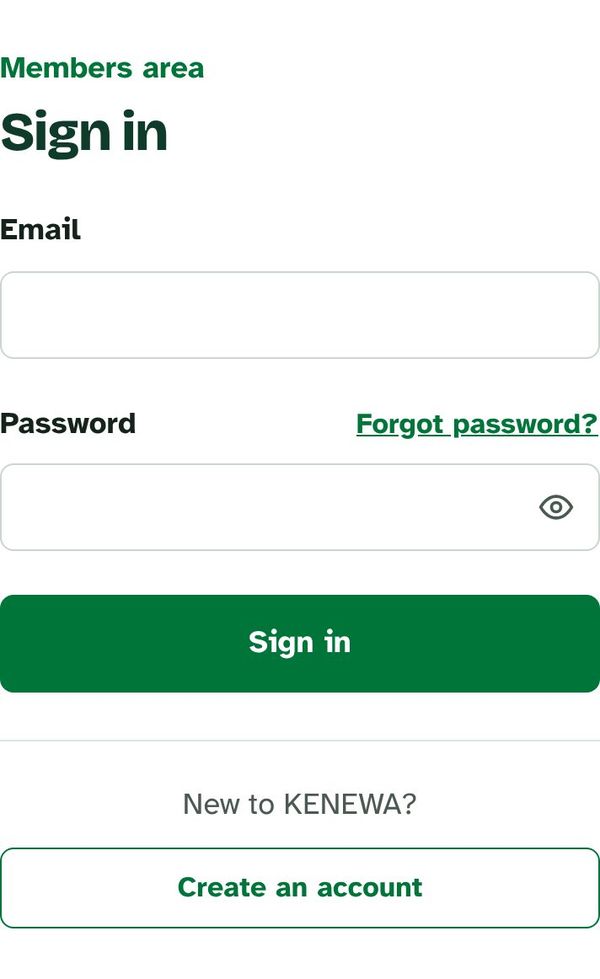
Go to kenewa.org/login. Type the practice email and password above and tap Sign in. When you are ready to join for real, tap Create an account instead and use your own email.
-
Step 2
Choose your membership
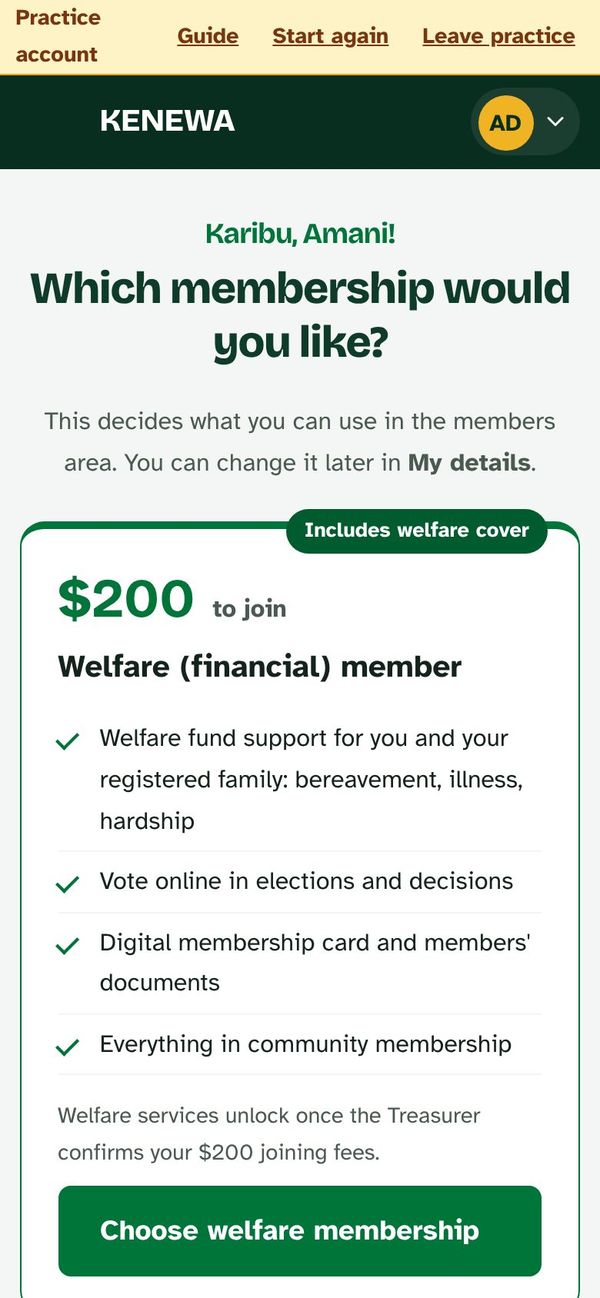
Pick Welfare (financial) member ($200 to join, with welfare fund cover for your family and voting rights) or Community member (free: news, events and the WhatsApp group). You can upgrade later.
-
Step 3
Fill in your details
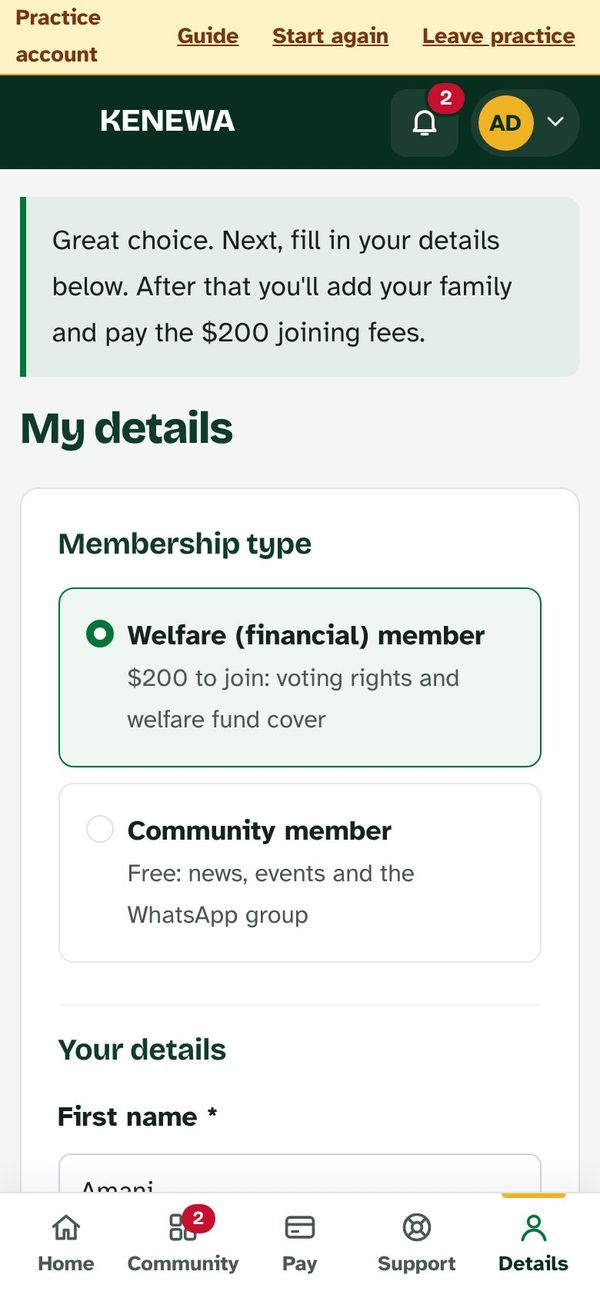
Add your contact details, home county in Kenya and next of kin. Tick the two declaration boxes at the bottom and tap Save and submit registration. Fields marked * are required.
-
Step 4
Add your family (welfare members)
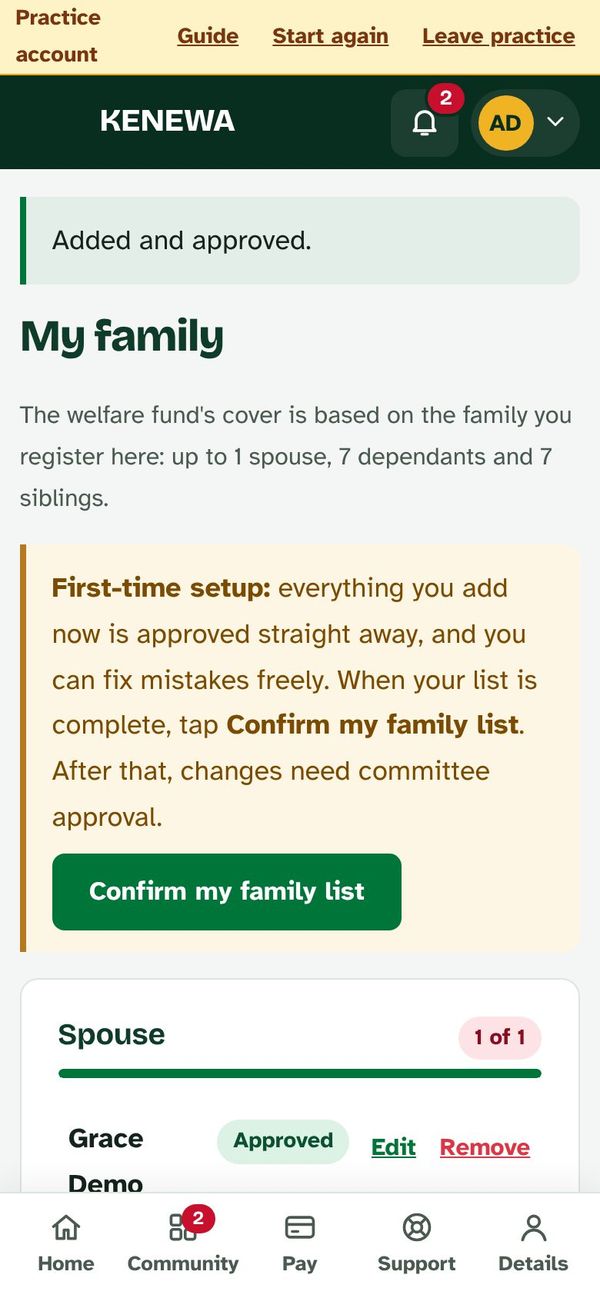
Add your spouse, dependants (up to 7) and siblings (up to 7). Your parents are covered too; if a guardian raised you, or you have step-parents, name one person for each parent place. These are the people the welfare fund covers. When the list is complete, tap Confirm my family list. After that, changes go to the committee for approval.
-
Step 5
Pay: PayID first
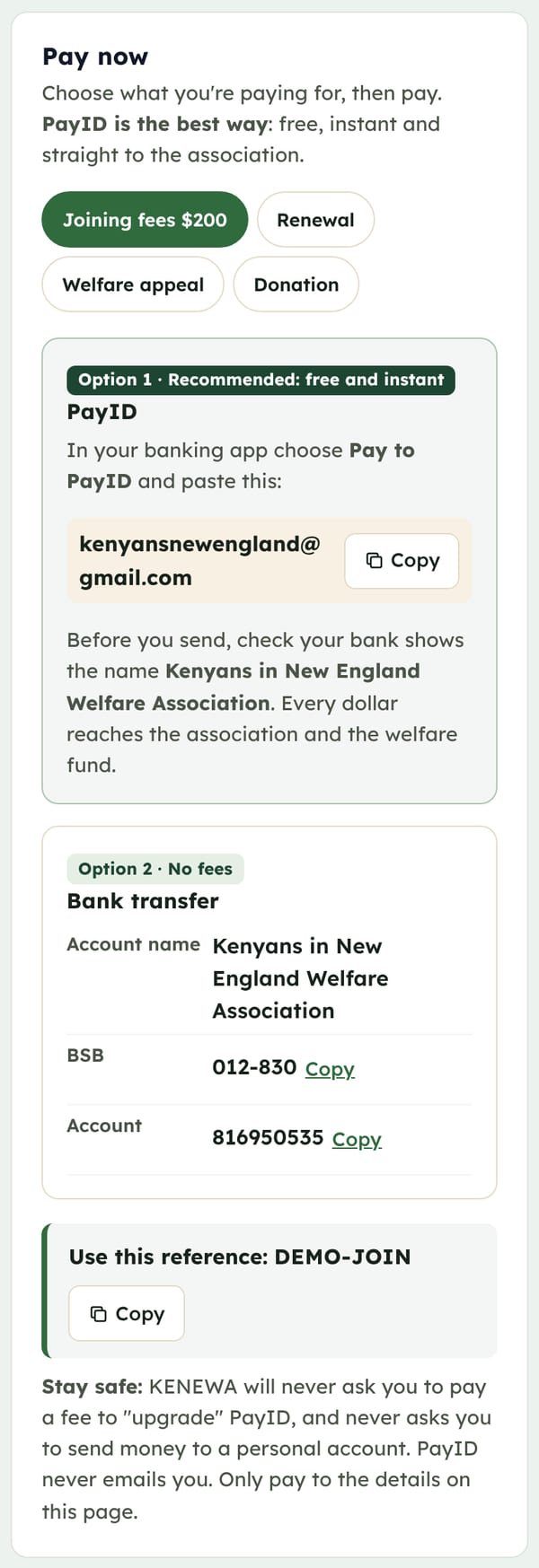
Open Pay. Choose what you are paying for (for example Joining fees $200). Option 1, PayID, is the best way: free, instant and straight to the association. In your banking app choose Pay to PayID, paste the PayID, check the name shows Kenyans in New England Welfare Association Inc, and use the reference shown on the page. Option 2 is bank transfer (also free). Always use your reference: it is how the Treasurer knows the money is yours.
-
Step 6
The Treasurer records it
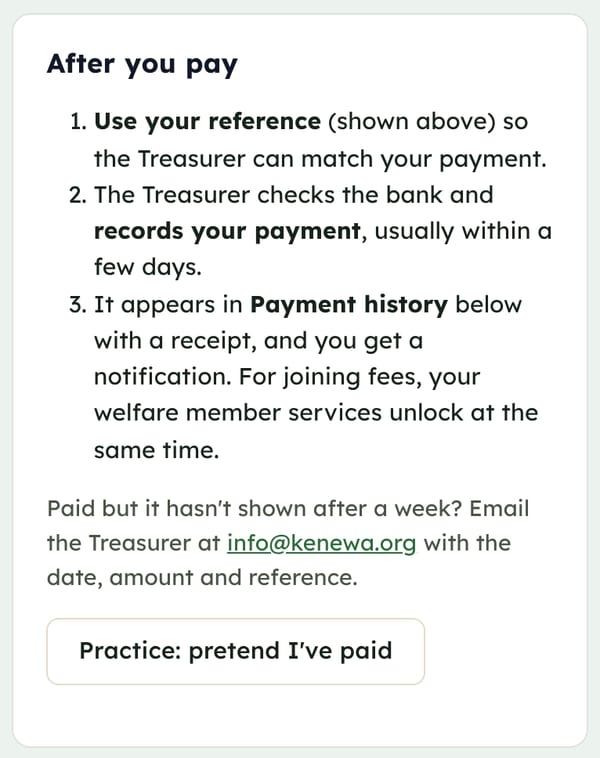
That's all you need to do. The Treasurer checks the bank, finds your payment by its reference and records it, usually within a few days. It then appears in Payment history with a receipt, and you get a notification. Paid but nothing after a week? Email info@kenewa.org with the date, amount and reference. (In the practice account, tap Practice: pretend I've paid to see what happens.)
-
Step 7
Wait for the Treasurer
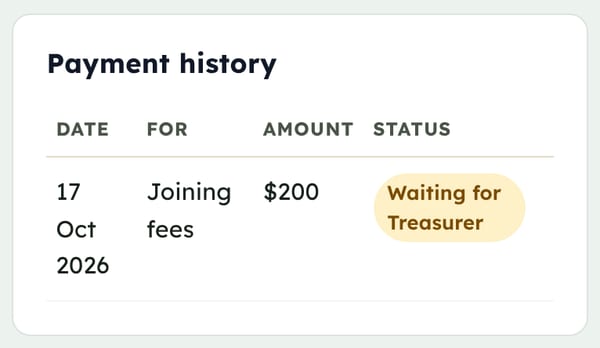
Your payment shows as Waiting for Treasurer until the Treasurer matches it with the bank. In the practice account this takes about 10 seconds; in real life allow a few days.
-
Step 8
Watch your steps on the home screen
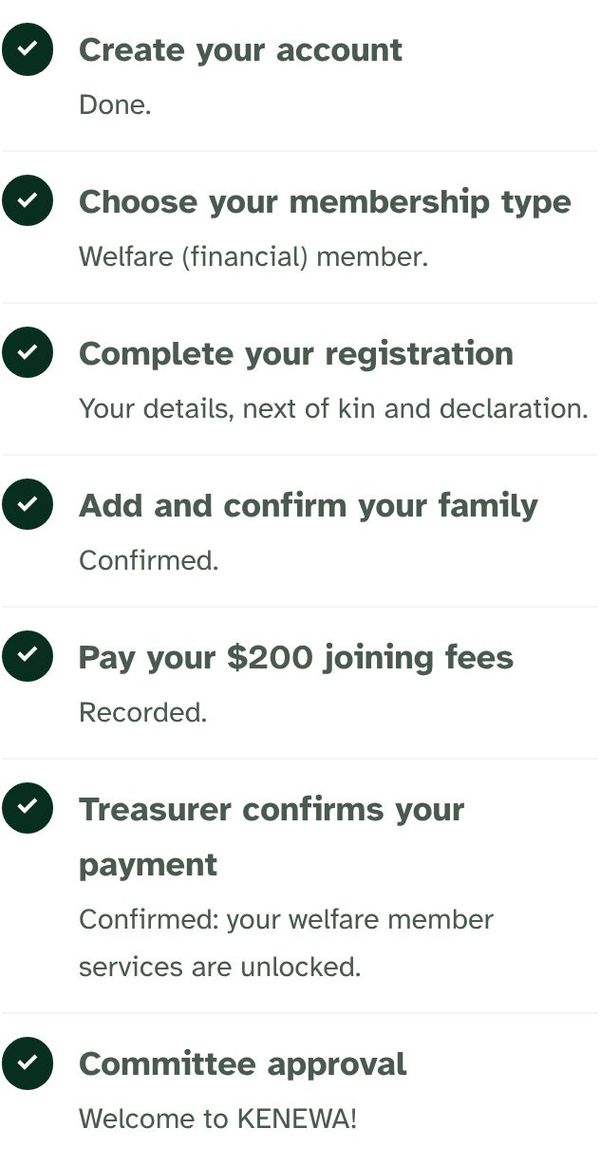
The Home screen shows your membership card and your steps. Each tick means a step is done. When the Treasurer confirms your payment and the committee approves you, your member number appears on the card. Home also shows who your welfare cover protects. To ask for support, tap the red Ask for support tile, or on a phone the red Get help button in the middle of the bottom bar.
-
Step 9
Use your member services
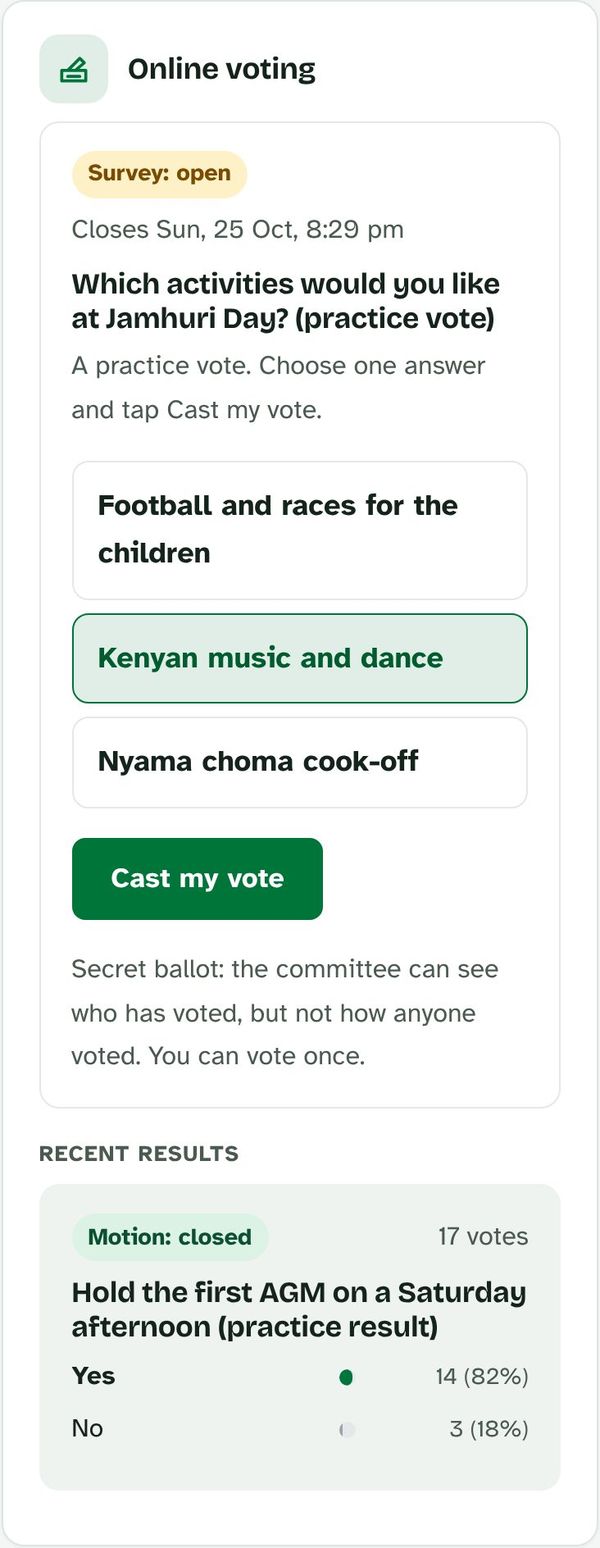
Welfare members can open Services to vote in elections and surveys (your vote is secret), see who in your family is covered, and read the constitution and policies.
-
Step 10
Show your membership card
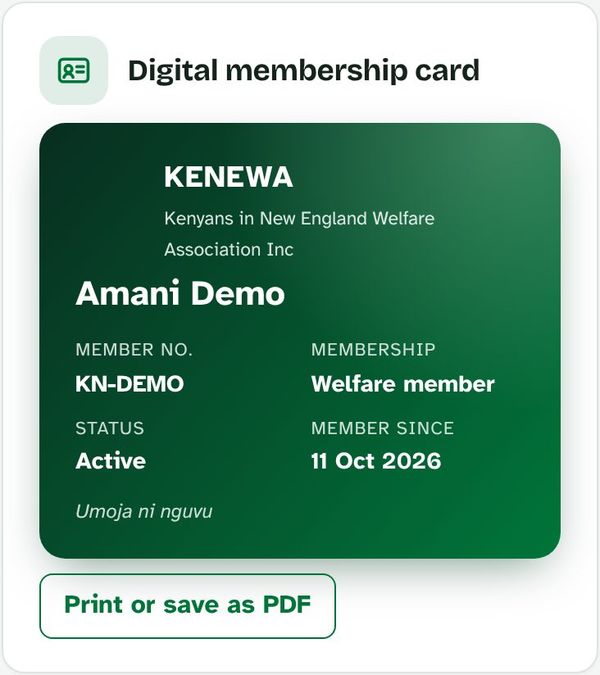
Your digital membership card is in Services. The badge says Valid member while your membership is paid up, or Renewal due when it's time to renew. Tap the card to turn it over: the back has a QR code the committee can scan, and what to do if you need help. At an event, tap Show at an event to make the card fill the screen. You can also tap Print or save as PDF and cut it out; print a new one after you renew. Your profile photo isn't on the card.
-
Step 11
Ask for support
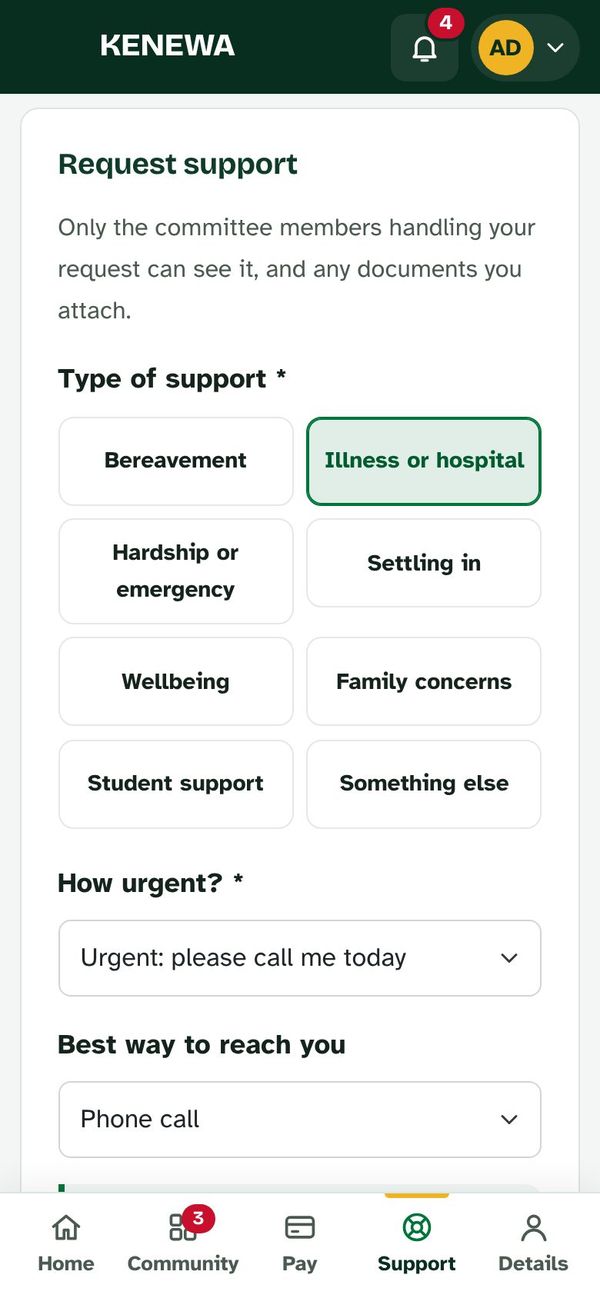
If you need help (bereavement, illness, hardship or anything else), open Support, choose the type, say how urgent it is and tell us what's happening. You can attach documents such as a hospital letter. If it's urgent, also email info@kenewa.org with URGENT in the subject line.
-
Step 12
See replies and notices
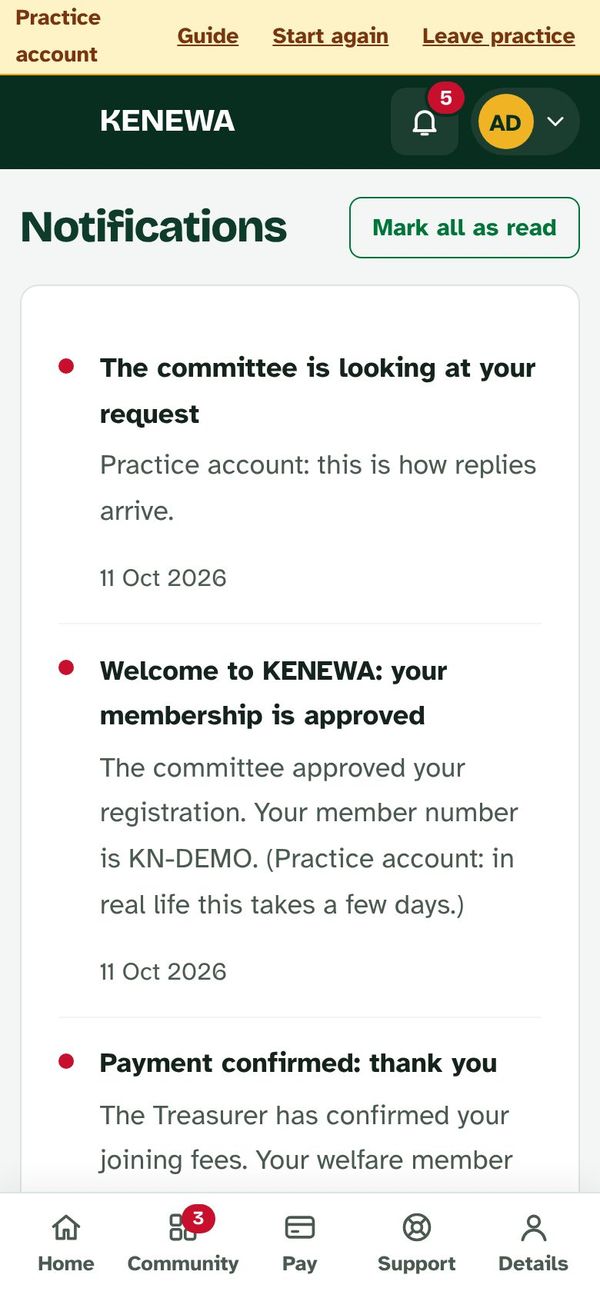
The bell at the top shows new notices from the committee: payment confirmations, approvals, replies to your requests and event news. The committee's reply also appears under your request in Support.
-
Step 13
Open Community
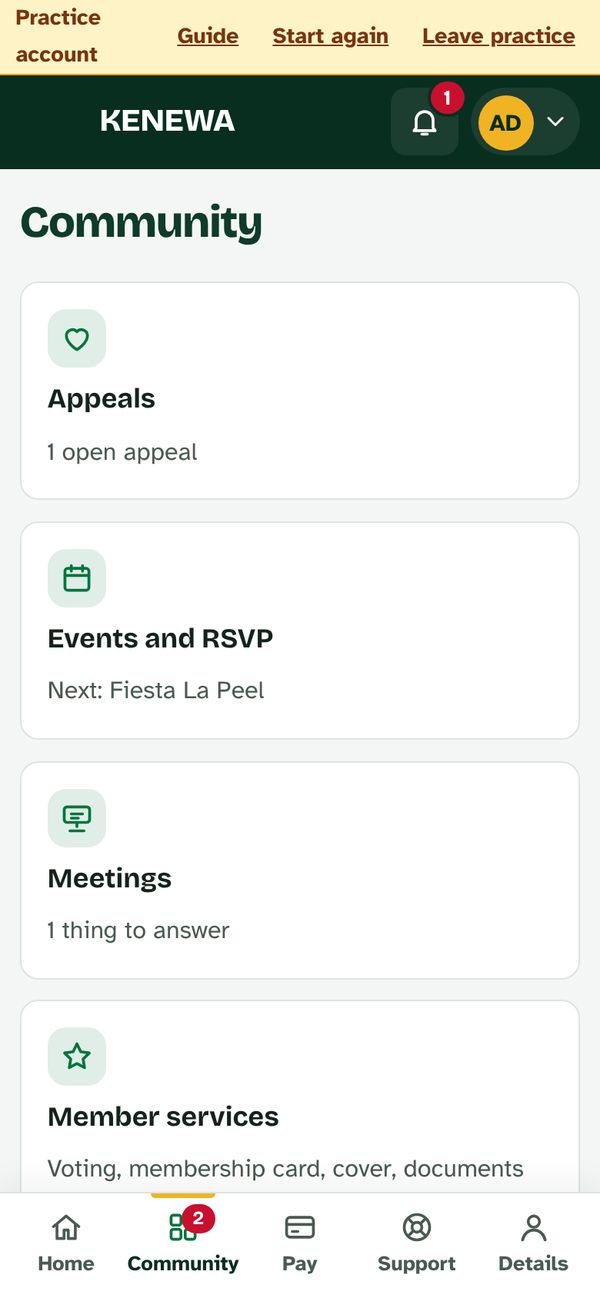
On your phone, tap Community in the bottom menu. It holds Appeals, Events and RSVP, Meetings, Member services and Notifications. A red number shows something waiting for you.
-
Step 14
Give to an appeal
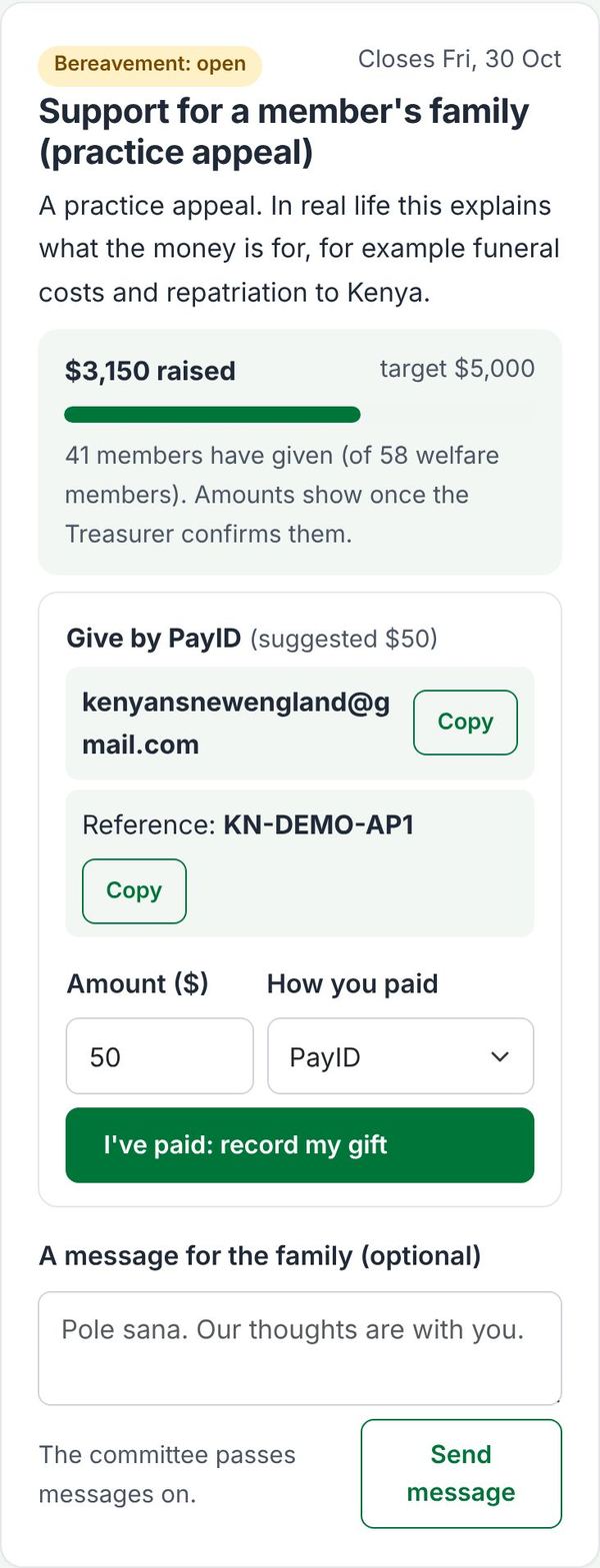
When a member's family faces a loss or crisis, the committee opens an appeal. You see what it's for, how much has been raised and how many members have given (never who gave what). Pay by PayID with the reference shown, then tap I've paid: record my gift. You can also send a message for the family; the committee passes it on.
-
Step 15
Say if you're coming to an event
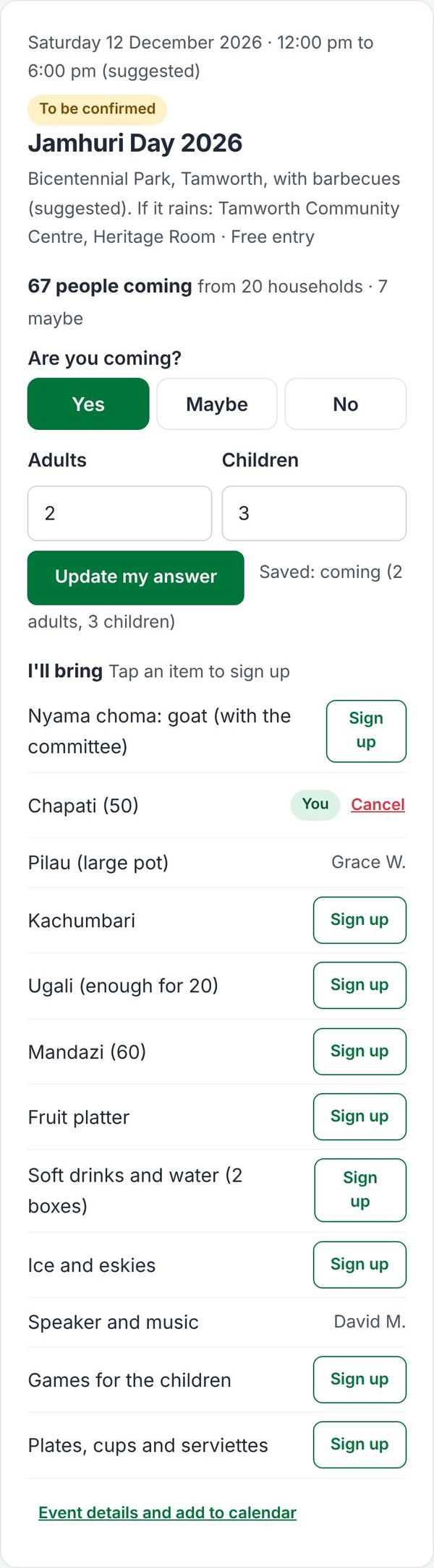
In Events and RSVP, tap Yes, Maybe or No, add how many adults and children, and tap Send my answer. Under I'll bring, tap Sign up next to something you can bring. You can change your answer any time.
-
Step 16
Meetings, apologies, proxies and nominations
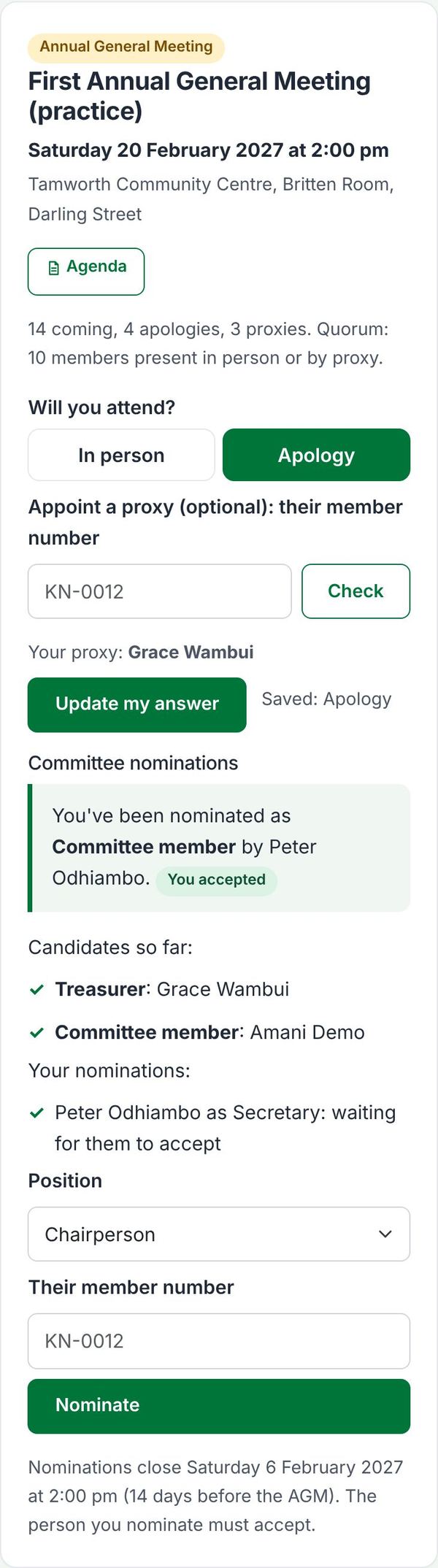
In Meetings, tell us if you'll attend. Can't come? Choose Apology and, if you're a welfare member, type another financial member's number to make them your proxy (they can vote for you). Before the AGM you can nominate a member for the committee by their member number; they must accept. If someone nominates you, tap Accept and stand or Decline.
-
Step 17
Get receipts and a yearly statement
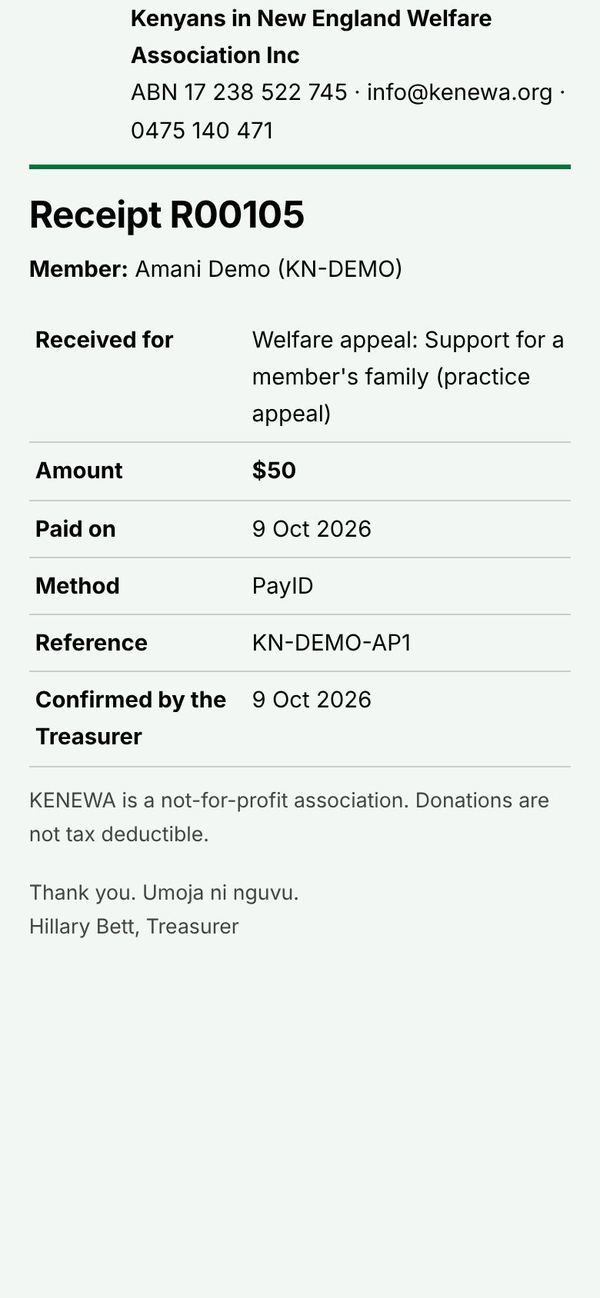
In Pay, every payment the Treasurer has confirmed has a Receipt button. Under Receipts and yearly statement, choose a financial year and tap Statement. Both open your phone's print screen: choose Save as PDF to keep a copy.
-
Step 18
Renew on time
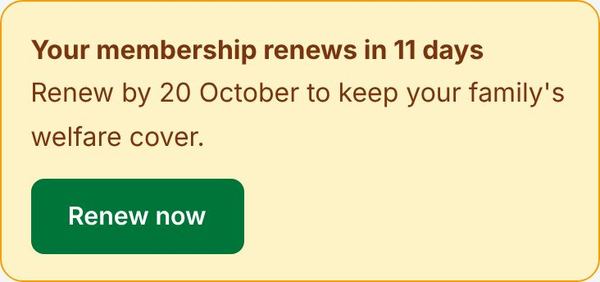
Welfare membership lasts 12 months from when the Treasurer confirms your fee. From 30 days before, a reminder appears on your Home screen. Tap Renew now: the Pay screen opens with Renewal ($170) chosen. The Pay screen also shows the date you're paid until.
-
Step 19
Join the chama
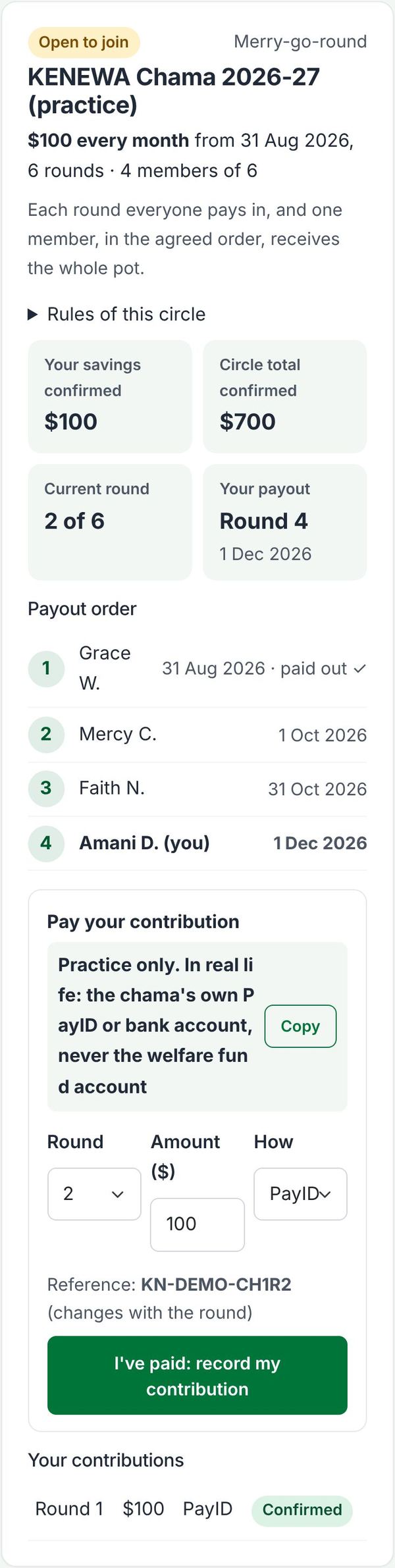
In Member services > Chama, tap Ask to join on an open circle. Once the committee approves you, you see your place in the payout order and the date of your payout. Each round, pay to the chama's own details shown (never the welfare fund account), then tap I've paid: record my contribution. Your confirmed savings add up at the top.
-
Step 20
Find a mentor, or become one
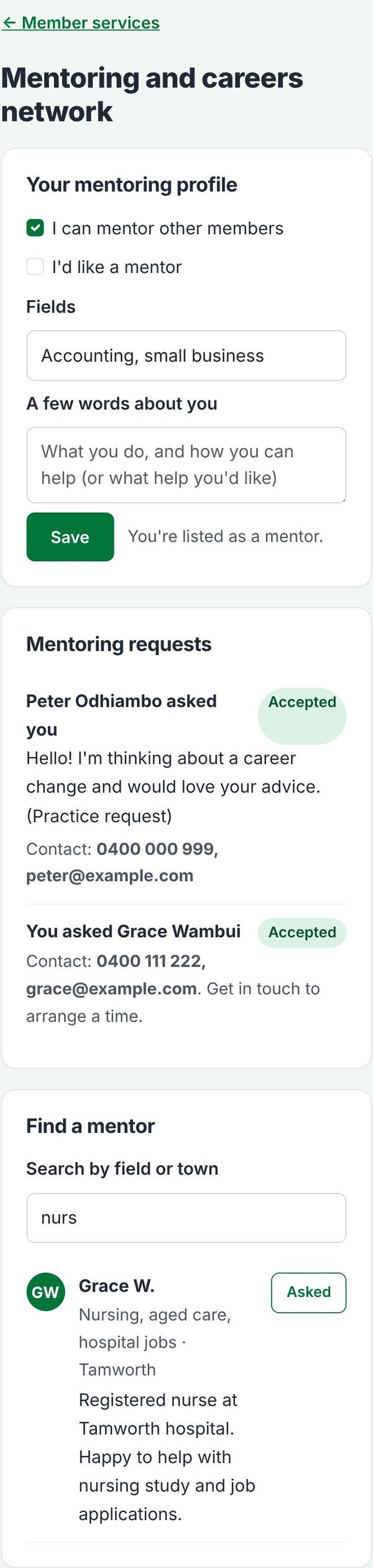
In Member services > Mentoring, tick I can mentor other members and/or I'd like a mentor, and add your fields. To ask a mentor, tap Ask, write a short message and send it. When they accept, you both get each other's contact details.
-
Step 21
Support members' businesses
In Member services > Business directory, search or tap a category, then call, WhatsApp, email or visit the website. Look out for offers for KENEWA members. To list your own business (up to 3), scroll down and tap List my business.

-
Step 19
Add KENEWA to your home screen, and make the text bigger
Open the members area on your phone. On Android, tap Install on the Home screen card (or your browser's menu, then Add to Home screen). On iPhone, tap Share, then Add to Home Screen. KENEWA then opens like an app, straight to your members area.
Text too small? Tap your initials at the top right of the members area to open your account menu, then choose a size under Text size: the small, medium or large A. On the sign-in page the same three buttons are at the top. Your phone remembers your choice. Sign out is in the same menu.
Need a hand?
Email the Secretary at info@kenewa.org. We are happy to sit with you and set it up together.